How do I send a buyer a payment link on WhatsApp?
Make an order for a buyer you're chatting with, choose sizes and colours, and send the link. The items are held for 15 minutes while they pay.
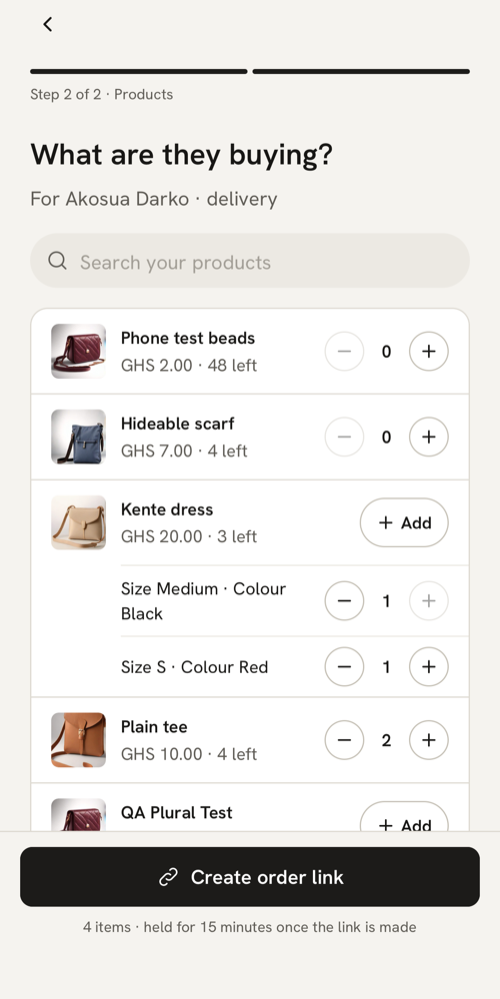
What you see
In the app, Orders has a New order link button. It opens with: “For a buyer you’re chatting with. They get a link to pay by MoMo, and you see the moment they pay.”
What it means
An order link is an order you make for the buyer, from products on sale in your kiosk. It holds the items for 15 minutes, just like an order placed on your kiosk, and gives the buyer a private link to pay. When they pay, the order turns Paid and you’re told straight away, so there’s no screenshot to check.
What to do
- Open Orders and tap New order link.
- Fill in Buyer’s name and Buyer’s WhatsApp number, and choose how they get it: Pickup or Delivery. For delivery, add the Delivery address. Tap Next: choose products.
- Search or scroll your products, then tap + or Add.
- For a product with choices like size and colour, a sheet opens. Pick each one: the button reads “Choose size” or “Choose colour” until you have, then Add to order. Each choice is its own line, and you can’t add more than you have left of it. Add the product again for another size or colour.
- Check the line at the bottom, for example “4 items · held for 15 minutes once the link is made”, and tap Create order link.
- The new order opens as Waiting for payment. Tap Send payment link. WhatsApp opens your chat with the buyer, with “Hi {first name}, here’s the link to pay for your order {code} at {store}: {link}”. Send it.
The order sits under Orders → Waiting until it’s paid. You can tap Send payment link again at any time while it waits.
What the buyer sees
The link shows your store’s name with “sent you an order to pay”, the order code, the total and “Items held for you until” a date and time. The total is your price plus the MoMo fee, which the buyer pays. Delivery isn’t included: you agree that with them. Each item shows its size, colour and quantity. If your kiosk shows your WhatsApp number, there’s also “Not what you agreed? Message {store} before paying.” They tap Pay {total} with MoMo and pay as on any order.
The link keeps the prices from when you made it, even if you change a price later.
If it says “Payments aren’t on yet”
Buyers can’t pay until your Ghana Card is verified and your MoMo wallet is approved, so Create order link is greyed out, with “Order links open once your payments are switched on”. Finish those steps first: see When do payments turn on for my store?.
If your store is closed or paused
- Closed: “Buyers can’t order while your store is closed, so order links are off. Open it to send one.” Tap Open now on Home, or switch your store on in Store settings, then make the link.
- Paused: you’ll see “Your store is paused”. Tap Message MeKiosk support on that screen.
If something isn’t available any more
“Some of these aren’t on sale or in stock any more. Check the products and quantities.” Someone else may have just bought the last one. No order was made and nothing is held. Change the items, then tap Create order link again.
If the link expired
If the buyer doesn’t pay within 15 minutes, the order turns Expired, the items go back on sale and no money moves. The buyer’s link then says it has expired and asks them to get a new link from you, or order from your kiosk.
To send a new one, open the expired order and tap Make a new order link for {first name}. It fills in the buyer’s name, number and delivery details, but not the items yet, so choose them again.
If the buyer says they paid just as it expired, see A buyer says they’ve paid, but the order isn’t Paid.
If you need to cancel it
Open the order, tap Cancel, then Cancel order. The buyer gets a text that the order is cancelled and they haven’t been charged, and the items go back on sale. This can’t be undone.
Last updated .