Why did my Ghana Card check fail or go to review?
How long the Ghana Card check takes, what "in review" means, what each failure message means, and how to try again or get help.
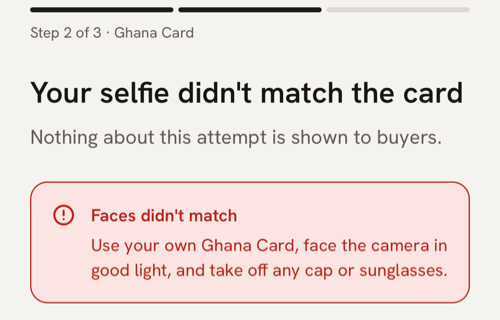
What you see
At step 2 you type your full name and Ghana Card number, tap Continue, photograph both sides of your card or upload saved photos of them, and take a selfie. The app then shows “Checking your card” with “Usually under a minute. You can keep this screen open.” Then one of three things happens:
- It passes. The app moves on to step 3, “Set up your store”, by itself.
- It goes to review. The app also moves on to step 3, and Account shows “We’re checking your Ghana Card”.
- It fails. A screen gives the reason, such as “Your selfie didn’t match the card”, with “Nothing about this attempt is shown to buyers.”
What it means
Smile ID, our identity partner, checks that your card is genuine, reads its number and name, and compares your selfie with the photo on the card. We also check that the card’s number is the one you typed, and that no other store uses it. Your photos and selfie go to Smile ID, never to MeKiosk.
In review means the check couldn’t be settled on its own, so a person at MeKiosk looks at it, usually within a day. Checks made from saved photos of the card go to review more often.
What to do
- Read the red notice under the title:
- “Your selfie didn’t match the card”: use your own Ghana Card, face the camera in good light, and take off any cap or sunglasses.
- “We couldn’t read the card”: move near a window or turn on a light, and keep the whole card in the photo. If you uploaded saved photos, choose sharp ones that show the whole card, or photograph the card instead.
- “We couldn’t find that card number”: check the number on the front of your card.
- “We couldn’t confirm it’s you”: take the selfie yourself, live, in good light. A photo of a photo won’t pass.
- “We couldn’t finish the check”: wait a few minutes and try again.
- Tap Try again. The fields start empty, so type your name and number again.
- Photograph or upload the same card whose number you typed. A different card fails, even if your face matches.
“We couldn’t accept this check” and “Your card has no photo on record” need us, as does “We couldn’t finish the check” if it keeps happening. Tap Help on WhatsApp on that screen, or email support@mekiosk.store. Never send your card number, card photos or selfie by chat or email.
If your check is in review
You don’t have to wait. Set up your store, add products, add your MoMo wallet and share your link. Buyers can look around but can’t pay until your card is approved. On Home, Check status looks again: “Still in review” means nobody has decided yet.
When a person decides, you get a notification:
- “Ghana Card verified” with “Your Ghana Card check passed. Open the app to finish setting up payments.”
- “Ghana Card not approved” with the reason. The app then shows the reason and Try again, as for a failed check, and buyers can’t open your store until you send a new check.
With Text messages (SMS) switched on in Account → Notifications, you also get a text, such as “Your Ghana Card check wasn’t approved: the photos weren’t clear. Open the app and check again in good light.”
If the check takes a long time
After two minutes the app shows “Taking longer than usual” with “You can close the app. The result shows here when you come back.” If a result is slow, we ask for it again automatically. Still checking after half an hour? Tap Help on WhatsApp on that screen.
If “The selfie check didn’t finish”
The capture stopped, often on a weak connection or in poor light. Tap Try again, or Back for the Ghana Card step.
If the card is already linked or used by another store
“This Ghana Card is already linked to another MeKiosk account.” shows under the card number, before any check starts. “This card is already used by another store” shows after a review. One card can open one store.
Check you typed your own card’s number. If that other store is yours because you changed your phone number, don’t start a new one: tap Sign out, then Sign in with your new number and choose Recover my store. How to move your store to a new number. If the store isn’t yours, message us.
Last updated .