How do I pay by MoMo, and why did my payment fail?
Your total includes the MoMo fee, and you approve the prompt on your own phone with your PIN. What each payment screen means, and what to do.
What you see
Before you pay, you see your total with the MoMo fee: in the cart, at checkout and on the Pay with MoMo page, for example “1 item · GHS 10.00 + GHS 0.20 MoMo fee · delivery paid separately”. The fee covers Paystack’s charge for the payment. Delivery is agreed with the seller. The Items held for clock counts down the 15 minutes your items are held.
What to do
- Under Your MoMo network, choose MTN, Telecel or AirtelTigo.
- Check the MoMo number. The prompt goes to that phone. Change it to pay from another wallet.
- Tap Pay with your total.
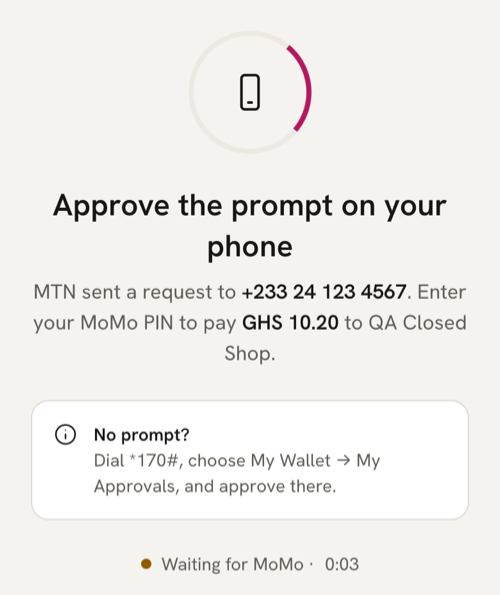
- On that phone, approve the prompt with your MoMo PIN. Enter your PIN only in your own phone’s prompt, and never share it with anyone, including the seller or MeKiosk. We will never ask for it.
- Stay on the page. It changes to Paid to the store’s name by itself.
If the clock is nearly out when you tap Pay, it’s topped up so you have time to approve.
If you’re asked for a code
Some wallets need a code first: “Paystack sent a 6-digit code to {number} by SMS or WhatsApp. Enter it to get the MoMo prompt.” Type it, tap Continue, then approve the prompt. If no code comes, tap Use a different number. For some Telecel wallets, the page shows Paystack’s own steps, with *110#, instead.
While you wait
No prompt? On MTN, dial *170#, choose My Wallet, then My Approvals, and approve there. On Telecel or AirtelTigo, check the phone has signal, isn’t on a call and has that SIM switched on.
After a minute the page says This is taking longer than usual. If you’ve entered your PIN, wait and don’t pay again: the page keeps checking. Once you’ve approved, you can tap “I approved it — check again”. Checking with your network means we’re making sure a payment didn’t already go through, so you’re never charged twice.
If your payment fails
Each screen says what happened, and your items stay held while the clock runs.
- You declined the payment: nothing was taken. Tap Try again, or use a different number.
- MTN didn’t approve it (or Telecel, or AirtelTigo): the wrong PIN was entered, or the wallet is locked. Nothing was taken. Don’t keep guessing your PIN: networks lock a wallet after too many wrong tries.
- Not enough in your MoMo wallet: the wallet has less than the total, or has reached its limit. Top up and tap I’ve topped up, or pay from another number.
- The prompt expired: it wasn’t approved in time, and no money was taken. Tap Send a new prompt. If money did leave your wallet, don’t pay again: message the seller with your order code.
- Finish on Paystack’s page: your network asked for an extra step. Tap Pay on Paystack’s page. You still pay with MoMo.
- The payment didn’t go through: if any money left your wallet, it will be returned. Try again, or use another number.
Paying on Paystack’s page
Having trouble? Pay another way opens Paystack’s own payment page: still MoMo, same total. Meanwhile the order page says Finish paying in the Paystack window until Paystack confirms.
Paying by card
Pay by card opens Paystack’s checkout, where you pay the same total with your card. When Paystack confirms, the paid page names your card and shows the fee as a card fee. If the card payment doesn’t go through, nothing is taken from your card, and you can try again or pay by MoMo.
After you pay
The Paid to page is your receipt: we don’t send a text when a payment goes through. It shows your order code and tells you the seller can see you’ve paid, so there’s no screenshot to send. Keep the link, or write down the code. The seller will WhatsApp you about delivery or pickup.
If you paid twice, the page says You paid twice. We send the extra back automatically, and refunds take 3 to 10 working days to reach your wallet. More in I paid twice, or my order hasn’t arrived. What now?.
If the order has expired
This order has expired (or This order link has expired) means the 15 minutes ran out. No money was taken and the items are back on sale. Tap Order from the store, or ask the seller for a new link.
If payments are busy
“Payments are busy right now.” means nothing was charged: wait a minute, then try again. “Too many tries” also means wait a minute. If the page says the store can’t take payments right now, message the seller about your order.
Something else wrong? Tap Report a problem on your order page.
Last updated .